Web Browsers, Internet Research & Professional Email
Week 1 — Digital Literacy for Healthcare Professionals
Learning Objectives
Given a healthcare research question, apply advanced search techniques (quotation marks, site: operator, filetype:) to locate relevant clinical information efficiently (CO-3)
Evaluate three online health sources using the CRAAP test, correctly identifying which meet academic and clinical reliability standards (CO-3)
Given a patient communication scenario, compose a professional Outlook email that includes all required elements and follows HIPAA-compliant messaging guidelines (CO-3)
Create and manage Outlook calendar events for a healthcare team, including recurring appointments and meeting invitations with appropriate details (CO-3)
Part 1 of 6
Part 1 of 6 — Web Browser Fundamentals for Healthcare Professionals
A web browser is the application you use to access websites and web-based applications on the internet. In a healthcare setting, you rely on web browsers constantly — to access cloud-based EHR systems, look up drug interactions, complete online training modules, check insurance eligibility portals, and stay current with medical guidelines. Understanding how to use a browser effectively is a foundational digital literacy skill.
What Is a Web Browser?
A web browser is a software application that retrieves and displays web pages from the internet. When you type a web address (URL) into the browser’s address bar or click a link, the browser sends a request to a web server, downloads the page content, and renders it on your screen. The most common web browsers include:
Microsoft Edge – The default browser in Windows 11, built on the Chromium engine. Edge is the browser you will most likely encounter on healthcare workstations because it integrates seamlessly with Microsoft 365 and Windows security features.
Google Chrome – The most widely used browser worldwide, known for speed and extensive extension library.
Mozilla Firefox – An open-source browser valued for its privacy features.
Apple Safari – The default browser on Mac and iOS devices.
Key Browser Components
Regardless of which browser you use, the interface follows a standard layout:
🔗
🔗 Address Bar
Type a web address or search terms to navigate. Located at the top of the window.
📑
📑 Tabs
Each open page appears as a tab. Open multiple tabs with Ctrl+T for multitasking.
⬅️
⬅ Back / Forward
Navigate between pages you have already visited in the current tab.
🔄
🔄 Refresh
Reloads the current page. Useful when a web app is not displaying updated info.
⭐
⭐ Bookmarks Bar
Save shortcuts to frequently visited websites like the EHR login or CDC guidelines.
⚙️
⚙ Settings Menu
Three dots in the upper-right corner. Access settings, history, downloads, and extensions.
Microsoft Edge Features for Healthcare
As the default Windows browser, Microsoft Edge offers several features particularly useful in healthcare environments:
Opens PDF files directly in the browser, which is convenient for viewing lab results, insurance documents, and clinical guidelines without needing a separate application.
A built-in tool for organizing web content into themed groups. A healthcare professional could create collections for "Continuing Education Resources," "Drug Interaction References," or "HIPAA Compliance Updates."
Strips away ads and distractions from web articles, presenting clean, readable text. Helpful when reading lengthy clinical guidelines or research summaries.
Displays tabs as a list on the side of the window instead of across the top, making it easier to manage many open tabs during a busy workday.
Edge connects seamlessly with your Microsoft 365 account, providing quick access to recent Office documents, Outlook email, and OneDrive files from the browser’s new tab page.
Healthcare Connection
A clinical coordinator who routinely accesses the CDC vaccination schedules, CMS regulatory updates, and the organization’s online policy manual can bookmark all three sites and arrange them in Edge’s Favorites bar for one-click access throughout the workday.
Part 2 of 6
Part 2 of 6 — Effective Internet Search Techniques
The internet contains billions of web pages, and knowing how to search efficiently separates a productive healthcare professional from one who wastes valuable time scrolling through irrelevant results. Whether you are looking up a medication’s side effects, finding a CMS policy update, or researching best practices for patient intake workflows, strong search skills help you find accurate information quickly.
Basic Search Strategies
Most people type a few words into a search engine and hope for the best. With a few simple techniques, you can dramatically improve your results:
Instead of searching "blood pressure," search "normal blood pressure range adults 2026 guidelines." More specific queries return more relevant results.
Placing a phrase in quotes forces the search engine to find that exact sequence of words. For example, "hand hygiene compliance rates" returns results about that specific topic rather than pages that happen to contain those words separately.
If your results include irrelevant content, add a minus sign before a term to exclude it. For example, HIPAA training -vendor -sales filters out commercial vendor pages.
To search only within a trusted source, use the site: operator. For example, site:cdc.gov influenza vaccination schedule returns only CDC pages about flu vaccination schedules.
If you need a PDF form or Excel template, add filetype:pdf or filetype:xlsx to your search. For example, OSHA bloodborne pathogens training filetype:pdf finds downloadable PDF training materials.
Advanced Search Strategies for Healthcare Research
When researching clinical topics or regulatory requirements, additional techniques can refine your results:
Include the year – Healthcare guidelines change frequently. Adding the current year (e.g., 2026) helps ensure you find current information rather than outdated guidelines.
Search authoritative domains – Use site:.gov for government sources, site:.edu for academic sources, or site:.org for established organizations.
Use Boolean operators – AND narrows results (both terms must appear), OR broadens results (either term can appear). For example, telehealth regulations (Florida OR California) 2026 finds telehealth rules for either state.
Check Google Scholar – For evidence-based clinical information, scholar.google.com searches academic and peer-reviewed publications specifically.
Healthcare Connection
A health information technician researching updated ICD-10 coding guidelines can use the search site:cms.gov ICD-10 coding updates 2026 filetype:pdf to find official CMS documents in PDF format, bypassing thousands of irrelevant commercial results.
Knowledge Check
A health information technician needs to find the official 2026 ICD-10 coding guidelines published by CMS in PDF format. Which search query would be MOST effective?
Correct! The search query site:cms.gov ICD-10 coding guidelines 2026 filetype:pdf uses three advanced techniques: the site: operator restricts results to the official CMS government website, adding 2026 ensures current results, and filetype:pdf finds downloadable PDF documents. This combination dramatically narrows the results to exactly what the technician needs.
Not quite. The most effective query is site:cms.gov ICD-10 coding guidelines 2026 filetype:pdf. It uses the site: operator to restrict results to the official CMS website, includes the year for currency, and specifies filetype:pdf to find downloadable documents — bypassing thousands of irrelevant commercial results.
Part 3 of 6
Part 3 of 6 — Evaluating Online Health Information: The CRAAP Test
Not all information on the internet is accurate, current, or trustworthy. This is especially critical in healthcare, where acting on unreliable information can compromise patient safety, lead to compliance violations, or result in poor clinical decisions. Healthcare professionals must develop the skill of critically evaluating every online source before relying on it.
Why Source Evaluation Matters in Healthcare
The internet hosts an enormous volume of health information, ranging from peer-reviewed research published by the National Institutes of Health to unverified blog posts and social media claims. A 2023 study published in the Journal of Medical Internet Research found that nearly 40% of health-related content on social media platforms contained inaccurate or misleading information. In a professional healthcare setting, using unverified information could mean:
Providing patients with incorrect health education
Following outdated clinical protocols
Violating regulatory requirements based on superseded guidelines
Making billing or coding decisions based on inaccurate information
The CRAAP Test Framework
The CRAAP Test is a widely used evaluation framework developed by librarians at California State University, Chico. It provides five criteria for assessing the reliability of any information source:
When was the information published or last updated?
Healthcare information changes rapidly. A medication dosing guideline from 2018 may have been superseded by updated recommendations. Always check the publication date and look for the most recent version. For clinical topics, prefer sources updated within the past 1–2 years.
Does the information relate to your specific question or need?
A general health article written for consumers may not contain the depth or specificity needed for a professional healthcare task. Evaluate whether the content matches your intended audience and purpose.
Who wrote or published the information? What are their credentials?
Look for content authored by medical professionals, published by recognized institutions (hospitals, universities, government agencies), or appearing in peer-reviewed journals. Check the "About" page of websites to verify organizational credibility.
Is the information supported by evidence? Can it be verified elsewhere?
Reliable health information cites its sources, references clinical studies, and aligns with established medical guidelines. If a claim seems unusual, cross-reference it with authoritative sources like the CDC, WHO, or peer-reviewed journals.
Why does this information exist? What is the author’s intention?
Evaluate whether the content is designed to inform, educate, persuade, sell, or entertain. Healthcare information on a pharmaceutical company’s website, for example, may be accurate but biased toward promoting their products. Academic and government sources typically have an educational purpose with less commercial bias.
CRAAP Test Quick-Reference
Criterion
Key Question
Green Flags (Trustworthy)
Red Flags (Unreliable)
Currency
When was it published or updated?
Published within the past 1–2 years; date clearly displayed; regular updates noted
No publication date; content is 5+ years old; references outdated guidelines
Relevance
Does it address your specific need?
Matches your professional context; appropriate depth and detail; intended for healthcare audience
Too general or too narrow; written for consumers when you need clinical detail; off-topic
Authority
Who wrote or published it?
Author credentials listed (MD, RN, PhD); published by .gov, .edu, or recognized institution; editorial review process
No author identified; unknown website; no credentials; personal blog or social media
Accuracy
Is it supported by evidence?
Cites peer-reviewed studies; aligns with established guidelines (CDC, WHO); data and statistics sourced
No citations or references; contains grammatical errors; makes extraordinary claims without evidence
Purpose
Why was it created?
Educational or informational intent; non-commercial; balanced presentation of evidence
Selling a product or service; strong emotional language; political agenda; one-sided presentation
Reliable vs. Unreliable Health Information Sources
Reliable Sources
Domain / Access
Unreliable Sources
Why They Are Risky
Centers for Disease Control (CDC)
cdc.gov
Personal health blogs
No editorial review; author credentials unverified; may promote unproven remedies
National Institutes of Health (NIH)
nih.gov
Social media health posts
Algorithms prioritize engagement over accuracy; misinformation spreads rapidly
World Health Organization (WHO)
who.int
Wikipedia (for clinical decisions)
Anyone can edit; useful for general overview but not reliable for clinical protocols
PubMed / Peer-reviewed journals
pubmed.ncbi.nlm.nih.gov
Online forums and Q&A sites
Anecdotal information from non-professionals; no quality control
CMS / Medicare.gov
cms.gov
Sponsored search results and ads
Paid placements designed to sell products or services, not to inform objectively
Professional associations (AMA, ANA)
.org domains
News headlines without full articles
Headlines often oversimplify or sensationalize; always read the full article and check sources
Knowledge Check
A medical assistant finds an article online about a new treatment protocol. The article has no author listed, no publication date, and the website sells supplements related to the treatment. According to the CRAAP Test, which criteria does this source FAIL?
Correct! This source fails Currency (no publication date, so timeliness cannot be verified), Authority (no author listed, so credentials cannot be evaluated), and Purpose (the website sells supplements related to the treatment, indicating a commercial bias). These three failures are sufficient to classify this as an unreliable source.
Not quite. The source fails Currency (no publication date), Authority (no author identified), and Purpose (the website sells supplements, indicating commercial bias). Without more detail about the content itself, Relevance and Accuracy cannot be definitively assessed from the information given.
Part 4 of 6
Part 4 of 6 — Getting Started with Microsoft Outlook: Email Management
Transitioning from internet research to professional communication, we now turn to Microsoft Outlook — the email, calendar, and contact management application in Microsoft 365. In healthcare, email is a primary communication channel for non-clinical correspondence: coordinating with colleagues, communicating with insurance companies, sending referral information, sharing reports with supervisors, and managing administrative workflows.
The Outlook Interface
When you open Microsoft Outlook, you will see several key areas. Select each tab to learn more:
Navigation Pane (left side) – Lists your email folders: Inbox, Sent Items, Drafts, Deleted Items, and any custom folders you create. You can create folders to organize emails by project, department, or topic — for example, "Insurance Inquiries," "Staff Scheduling," or "Training Notifications."
Message List (center) – Shows the emails in the currently selected folder, with the newest messages at the top. Each entry displays the sender's name, subject line, a preview of the first few lines, and the date/time received.
Reading Pane (right side) – Displays the full content of the selected email without opening it in a separate window. This split-view layout lets you browse and read messages quickly.
Ribbon or Command Bar (top) – Provides buttons for common actions: New Email, Reply, Reply All, Forward, Delete, and more. In the new Outlook, this appears as a simplified command bar.
Navigation Icons (bottom left) – Quick switches between Mail, Calendar, People (contacts), and Tasks views. These icons let you move between Outlook's different modules without leaving the application.
The Outlook navigation bar provides quick access to Mail, Calendar, People, and Tasks — Microsoft Support
Reading and Organizing Email
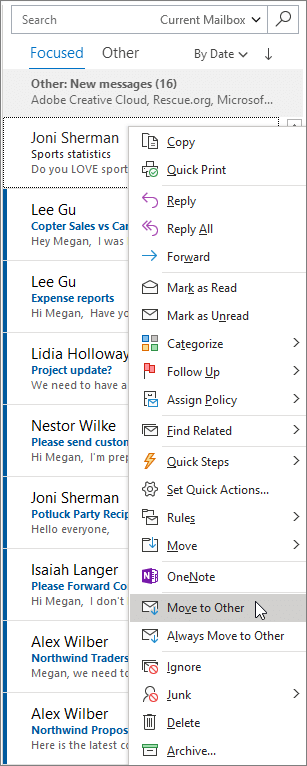
When a new email arrives in your Inbox, Outlook displays it in bold to indicate it is unread. After reading it, you should decide on an action:
If a quick response is needed, reply immediately. Keep your response concise and professional.
Flag the message for follow-up if it requires action but not immediately. Select the flag icon next to the message. Many professionals use the "Two-Minute Rule": if an email can be handled in two minutes or less, deal with it immediately; otherwise, flag it and schedule time to address it later.
Move the message to an appropriate folder for organized reference. Drag it to a folder in the navigation pane, or right-click and select Move. Well-organized folders make it easy to find emails later.
Delete the message if no further action is needed and it does not need to be retained. Deleted items go to the Deleted Items folder, where they can be recovered if needed.
Focused Inbox automatically separates important messages from everything else — Microsoft Support
Composing and Sending Email
To create a new email in Outlook:
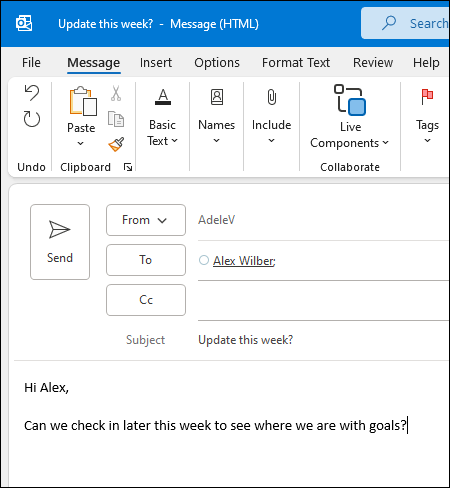
Select New Email (or press Ctrl+N).
In the To field, type the recipient’s email address. Outlook will suggest contacts from your address book as you type.
Use the Cc (Carbon Copy) field to include people who should be informed but are not the primary recipient. Use Bcc (Blind Carbon Copy) when recipients should not see each other’s email addresses.
Type a clear, specific Subject line. Example: "Patient Referral – PT10452 – Cardiology Consult Request."
Compose your message in the body area using professional formatting.
To attach a file, select the Attach File button (paperclip icon) and browse for the document.
Select Send when your message is complete.
The Outlook compose window — enter recipients, subject, and your message — Microsoft Support
Healthcare Connection
The Cc and Bcc fields serve different purposes in healthcare. Bcc is particularly important when emailing multiple patients (e.g., appointment reminders or clinic announcements), as it protects patient email addresses from being visible to other recipients — an important HIPAA consideration.
▶
Microsoft Outlook Tutorial — Beginner to Pro• Kevin Stratvert • 20 min
▶
Top 20 Microsoft Outlook Tips & Tricks• 15 min
Part 5 of 6
Part 5 of 6 — Professional Email Etiquette in Healthcare
Email in a healthcare setting is a professional communication tool, and the messages you send reflect on both you and your organization. Unlike casual text messages or social media posts, professional emails must be clear, courteous, and appropriately formal. Poor email communication can lead to misunderstandings, delayed responses, and a negative impression on colleagues, supervisors, and external partners.
Essential Elements of a Professional Healthcare Email
Every professional email should include these elements:
Clear subject line – Summarize the email's purpose in 5–10 words. Include relevant identifiers when appropriate. Examples: "Staff Meeting Agenda – February 20, 2026," "Insurance Verification Request – PT10452," "HIPAA Training Completion Confirmation."
Professional greeting – Begin with a greeting appropriate to the relationship. For a supervisor or external contact: "Dear Dr. Martinez," or "Good morning, Ms. Chen." For a familiar colleague: "Hello, Sarah," or "Hi, Team."
Concise body – State the purpose of the email in the first sentence. Provide necessary details in organized paragraphs or bullet points. Keep the message focused on one topic when possible.
Clear call to action – If you need the recipient to do something, state it explicitly. "Please review the attached schedule and confirm your availability by Friday, February 21" is much clearer than "Let me know what you think."
Professional closing – End with an appropriate sign-off such as "Thank you," "Best regards," or "Sincerely," followed by your full name and contact information.
Email signature – Include your name, title, department, phone number, and organization. Many healthcare organizations have a standardized email signature format.
Common Email Mistakes in Healthcare Settings
"Hi," "Question," "Urgent," or blank subject lines make emails hard to find later and may be flagged as spam. Always use specific, descriptive subject lines.
Only use Reply All when every recipient genuinely needs to see your response. Replying "Thanks!" to an all-staff email clutters everyone's inbox.
Avoid slang, text abbreviations (u, ur, thx, lol), excessive exclamation marks, or ALL CAPS (which reads as shouting). Maintain a courteous, professional tone even when frustrated.
Protected Health Information should never be sent through regular email unless your organization has an encrypted email system in place. Always follow your organization’s HIPAA email policy.
If you mention an attachment in your email, double-check that you actually attached it before selecting Send. Outlook will often prompt you if it detects the word "attached" in your message without a file attached.
Never send an email when angry or upset. Draft the message, save it, and review it after cooling down. In healthcare’s high-stress environment, this simple practice prevents regrettable communications.
Healthcare Connection
Imagine a medical assistant who sends a referral email to a specialist's office with the subject line "patient" and no greeting, misspells the specialist's name, and forgets to attach the required documents. This unprofessional communication could delay the patient's care and damage the clinic's professional reputation. Clear, well-structured emails are a fundamental healthcare workplace skill.
📨
Inbox Challenge: Choose the Right Action
You are a healthcare administrative assistant. Review each email scenario and select the best action.
Specialist Reply
Dr. Patricia Reyes, Cardiology
RE: Referral for PT10452 — ECG Results
Thank you for the referral. I have reviewed the ECG results and would like to schedule the patient for a follow-up stress test. Please coordinate with the patient and send available dates. I have attached my schedule for next week.
Email 1 of 5
★ 0/0
What is the best action for this email?
0/5
Emails Handled Correctly
Knowledge Check
A front-desk coordinator needs to email a specialist's office to request a consultation for a patient. Which subject line follows professional email etiquette for healthcare communication?
Correct! The subject line "Consultation Request - PT10452 - Cardiology - Dr. Ramirez" follows professional email etiquette by clearly stating the purpose, including a patient identifier (PT number rather than patient name for HIPAA compliance), specifying the specialty, and naming the requesting physician.
Not quite. The best subject line is "Consultation Request - PT10452 - Cardiology - Dr. Ramirez." It clearly states the purpose, includes a HIPAA-compliant patient identifier, and provides enough detail for the recipient to prioritize and file the email appropriately.
Part 6 of 6
Part 6 of 6 — Outlook Calendar: Scheduling and Time Management
Beyond email, Microsoft Outlook includes a powerful calendar feature that healthcare professionals use to manage appointments, schedule meetings, set reminders, and coordinate across departments. In a healthcare setting, effective calendar management supports punctual patient care, efficient staff coordination, and timely completion of administrative tasks.
Accessing the Calendar
To switch from email to the calendar view, select the Calendar icon at the bottom of the navigation pane. You can switch between several views:
Day view – Shows a single day broken into hourly time slots. Best for seeing detailed daily schedules.
Work Week view – Shows Monday through Friday. The default and most commonly used view in healthcare settings.
Week view – Shows all seven days including weekends. Useful for staff who work weekend shifts.
Month view – Provides a high-level overview of the entire month. Good for planning ahead and identifying busy periods.
Creating an Appointment
An appointment is a scheduled block of time on your calendar that does not involve inviting other people. To create an appointment:
In the calendar view, double-click the desired date and time slot, or select New Appointment in the ribbon.
Enter a Subject (e.g., "Complete HIPAA Annual Training Module").
Set the Start time and End time.
Optionally add a Location (e.g., "Conference Room B" or "Online – Teams Link").
Add Notes in the body area for any relevant details.
Set a Reminder to alert you before the appointment (default is 15 minutes, but you can customize).
Select Save & Close.
Scheduling a Meeting
A meeting is like an appointment but includes inviting other people. When you create a meeting, Outlook sends email invitations to attendees who can accept, tentatively accept, or decline:
Select New Meeting in the ribbon (or press Ctrl+Shift+Q).
In the To field, add the email addresses of the people you want to invite.
Enter the Subject, Location, Start time, and End time.
Use the Scheduling Assistant to view attendees’ availability. Outlook displays each person’s free/busy status in a timeline, making it easy to find a time that works for everyone.
Add a message in the body with the meeting agenda or relevant information.
Select Send to deliver the invitation.
Recurring Events
Many healthcare activities happen on a regular schedule: weekly staff meetings, monthly safety huddles, quarterly compliance trainings, annual performance reviews. Instead of creating these events individually, you can set an event as recurring:
Create an appointment or meeting as usual.
Select Recurrence in the ribbon.
Set the pattern: daily, weekly (select specific days), monthly, or yearly.
Set the range: no end date, end after a specific number of occurrences, or end by a specific date.
Select OK, then save or send the event.
Calendar Best Practices for Healthcare Professionals
Schedule "busy" blocks for tasks that require concentration, such as completing patient documentation or processing insurance claims. This prevents colleagues from scheduling meetings during your productive hours.
Outlook allows you to assign color categories to calendar events. Use blue for patient-related tasks, green for training, yellow for administrative meetings, and red for deadlines. This visual coding makes your schedule easier to scan at a glance.
Use longer reminders (1 day or more) for events requiring preparation, and shorter reminders (15 minutes) for routine meetings. For critical deadlines like license renewal dates or compliance training due dates, set multiple reminders.
In Outlook, you can share your calendar with colleagues so they can see your availability. This is standard practice in many healthcare offices and facilitates scheduling across departments.
If a meeting is canceled or rescheduled, update your calendar immediately. An inaccurate calendar is worse than no calendar at all because it provides false information about your availability.
Healthcare Connection
A clinic office manager uses the Outlook Scheduling Assistant to coordinate a mandatory infection control training session for 15 staff members who work different shifts. By viewing everyone's free/busy status, the manager quickly identifies two possible time slots where all staff are available, sends the meeting invitation, and receives RSVPs directly in Outlook — all without a single phone call or paper sign-up sheet.
Knowledge Check
An office manager needs to schedule a mandatory monthly safety huddle for the entire clinical staff on the first Tuesday of every month for the rest of the year. What is the MOST efficient way to set this up in Outlook?
Correct! Creating one meeting with a monthly recurrence pattern is the most efficient approach. Outlook's Recurrence feature lets you set a meeting to repeat on the first Tuesday of each month with a single setup. The invitation is sent once, and all occurrences appear on every attendee's calendar automatically.
Not quite. The most efficient approach is to create one meeting with a monthly recurrence pattern. This eliminates the need to create individual meetings for each month. Attendees receive calendar reminders and can respond with their availability for each occurrence.
Lesson 1.3 Summary
Web browsers like Microsoft Edge are your gateway to cloud-based healthcare applications, research, and online training.
Use advanced search operators (site:, filetype:, quotation marks, minus sign) to find specific healthcare information quickly.
Apply the CRAAP Test (Currency, Relevance, Authority, Accuracy, Purpose) to evaluate every online health information source.
Professional emails need clear subject lines, proper greetings, concise body, call to action, and professional signature.
Know when to Reply, Reply All, Forward, Delete, or Flag — misusing Reply All is a common workplace mistake.
Use Outlook Calendar for appointments, meetings, and recurring events with the Scheduling Assistant for team coordination.